| Red Hat Documentation |
 |
Chapter 14. The GNOME File Manager
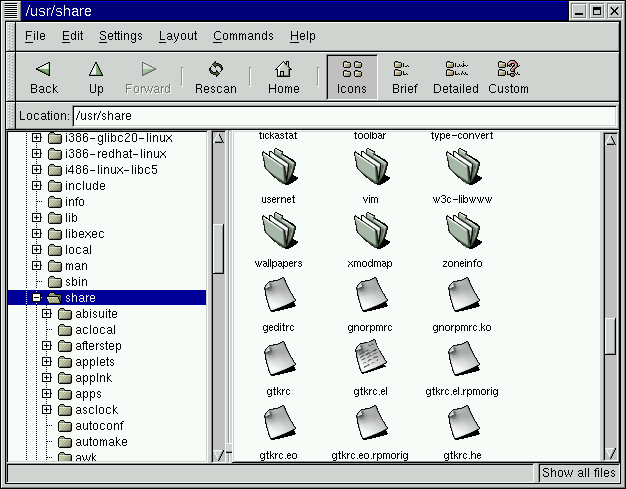
IntroductionGNOME includes a file manager that allows you to manipulate the files on your system in a comfortable, powerful, graphical environment. This File Manager is known as GMC for GNU Midnight Commander. GMC is based on the Midnight Commander file manager which can be run in a terminal. Midnight Commander has long been known for its power and ease of use. GMC has taken the power and ease of use from MC and added the GNOME graphical frontend. As mentioned in the previous chapter, the GNOME File Manager provides the desktop functionality for GNOME. The GNOME File Manager also provides a place to manipulate files on your system by using the GNOME File Manager window. Figure 14-1. GNU Midnight Commander - The GNOME File Manager
There are two main windows within the GNOME File Manager. On the left is the tree view, which represents all of the directories on your system by their hierarchical position. On the right is the directory window, which will show you the contents of the directory which you have selected in the tree view. To select a directory in the tree view simply use a single mouse click. This will change the main directory view, showing the files in the directory you have chosen. If there is a plus sign to the left of a directory name in the tree window, you may click on it to show subdirectories. At this point the plus sign will have changed to a minus sign. If you click on the minus sign, the subdirectories once again become hidden in the tree view and the plus sign reappears. The directory window has a few viewing options you may wish to take advantage of: the icon view and and three list views, brief, detailed, and custom. The Icon view is the default view and will display large icons for each file. The Brief view shows the files and directories in a list. The Detailed view expands this list to include information about the files. The Custom view is a list view that allows you to select the information you want to view about files. In the Brief, Detailed, and Custom views if you click on one of the information titles on the top of the window it will sort the files according to that information. For example, if you want to find the largest files in the directory you can click on the Size title and the files will be sorted by size from largest to smallest. One more click on the Size title will change the sorting from smallest to largest. |
|