| Red Hat Documentation |
 |
Copying and Moving FilesThe default action for dragging and dropping files between the GNOME File Manager and the desktop is to move them. But you can also use drag and drop to copy a file by pressing the SHIFT key while dragging the file(s). You can also drag a file within the file manager to another directory. Select the file in the main window and drag it to the desired directory in the tree window. Note, however, that when dragging to the tree window the default action is to copy the file. As you drag the file to the tree window, you will see a plus sign appear to remind you that the file will be copied. You can also use drag and drop to copy directories the same way as you did for files. Again note the plus sign signifying that the directory will be copied not moved You may also bring up a menu which lets you decide what action to perform with a drag by using the middle mouse button to drag a file or pressing the ALT Key while dragging a file. Once you release the drag you will get a pop-up menu which contains the options Copy, Move, Link, and Cancel Drag.
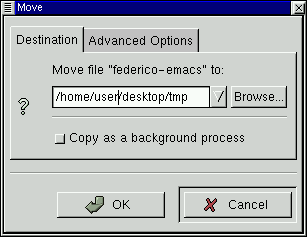
Figure 14-3. The Move Dialog
If the file you are moving is a symbolic link — that is, a virtual link to where the file actually resides (called a shortcut in some other operating systems) — you may select the Advanced Options tab and select Preserve symlinks. Selecting this will make sure the link is preserved despite the move. It is recommended that you use this method of moving a symbolic link. |
|
||||||