| Red Hat Documentation |
 |
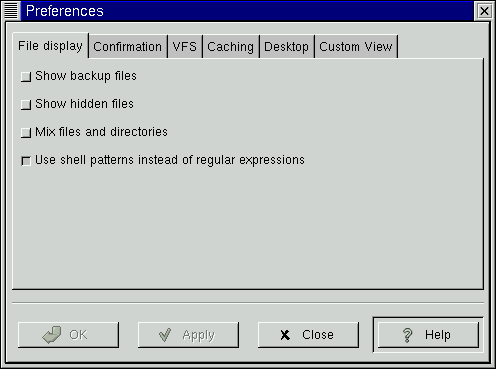
Changing Your Preferences in The File ManagerThere are many settings you can configure for the GNOME File Manager. These settings may be accessed from the GMC Preferences dialog. You may launch this dialog by selecting the Preferences menu item from the Settings menu. The GMC Preferences dialog is divided into Five major sections: File Display, Confirmation, VFS, Caching , Desktop, and Custom View. File DisplayFigure 14-7. File Display Preferences
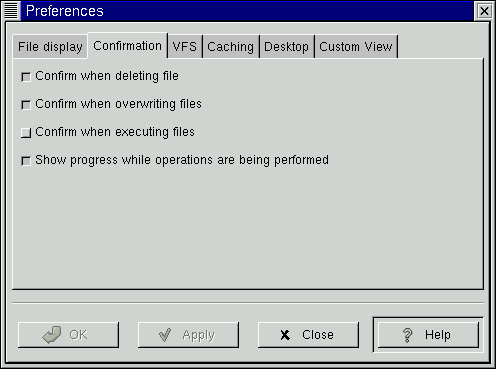
ConfirmationFigure 14-8. Confirmation Preferences
VFSFigure 14-9. VFS Preferences
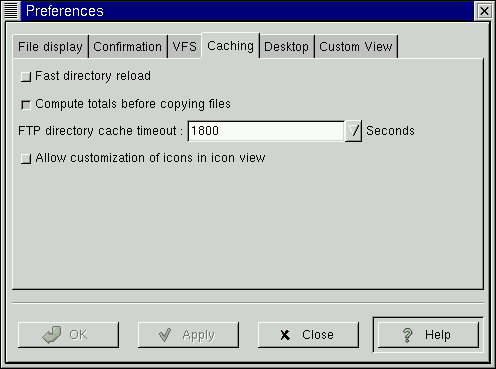
CachingFigure 14-10. Caching Preferences
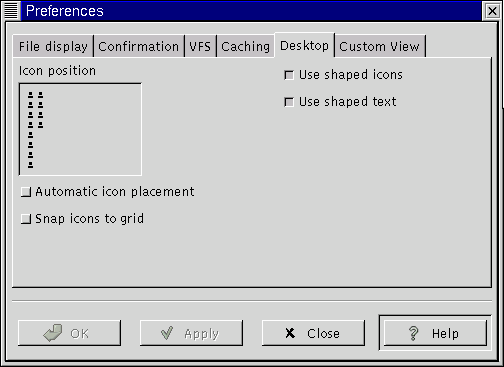
DesktopAs you learned before, the GNOME desktop is controlled by the GNOME File Manager. The Desktop Dialog allows you to change the settings of the desktop. Figure 14-11. The Desktop Dialog
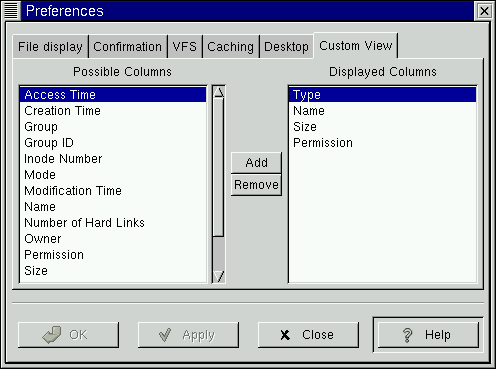
Icon placement - This small window allows you to determine where your desktop icons will be placed by default. To change the location of the icons simply click your mouse button in the window near the edge you would like the icons to appear. The small sample icons will move with your mouse clicks to show you where the default placement will be. Use shaped icons - This option is turned on by default. If for some reason you have and older display, a strange X server setup, or any other graphic display problem, you may select this to make the desktop icons non-transparent. Use shaped text - This option is turned on by default. Like the shaped icons above you may choose to have non-transparent text labels with your icons. Auto icon placement - This will automatically arrange icons on your desktop for you. If you would rather place the icons manually you should turn this off. Snap icons to grid - This will keep all of your icons in line when you move them to keep a clean desktop. It creates a grid that the icons will automatically move to when you release it after dragging. Custom ViewThe Custom View dialog allows you to set the way you would like the Custom View to look in the GNOME File Manager. Figure 14-12. The Custom View Dialog
There are two main columns in the Custom View, the Possible Columns and the Displayed Columns. The Possible Columns list includes all of the information types that can be displayed. If you would like to include one, you may press the Add button and it will be added to the Displayed Columns list. The Displayed Columns list shows you the current information types that will be included in your Custom View. If you wish to remove any you may press the Remove button. If you would like to re-arrange the items in the Displayed Columns list you may drag them to the desired location with your mouse. |
|
||||||