| Red Hat Documentation |
 |
A Good "Man" Is Easy to FindAs you investigate your new system, you're bound to have questions about commands and system services. One of the easiest ways to find out about how to use many commands or some applications is through the man command. The word man stands for "manual," a series of online "pages" which can tell you the purpose of many commands. In a highly condensed format, man pages provide a summary of a command's purpose, the options available and the syntax which is used to issue the command. If you count yourself among the "newbies" to Linux, you might not find man pages as useful as someone who's more accustomed to their terse delivery of information. But man pages can help steer you toward the proper way to use commands on your system. Even at this point, you can gain insight into your system by familiarizing yourself with the man pages. You'll certainly want to know how to use them eventually. There are several ways to view the man pages: from GNOME's Help Browser, from an application called xman or from the shell prompt.
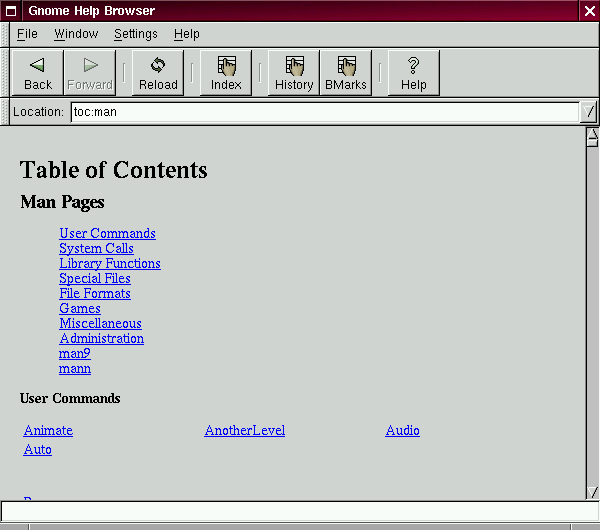
GNOME's Help browser: To start GNOME's Help Browser, go to Panel => Help system. The GNOME Help Browser will start. On the first page, you'll find links to the man pages and to other helpful documentation.
From xman: Depending on your window manager, there will be different ways to access the graphical presentation of the man pages through the menus. (Window managers literally manage how the windows in your X session are presented.) A quick way to start the one man page browser, however, is to go to a shell prompt and type:
which will start one of the X Window System man page browsers. When the menu appears, click on Manual Page. From here, you'll have a number of options from which to find a man page: You can alphabetically display all the man pages on your system; search for them by command or by the section in which they appear. To see the scope of help available, bring up your manual browser, then click on Manual Page then, under Options, click on Display Directory. Here, you'll find the complete list of man pages available to you. From the shell prompt: If you're not in an X session, you can still read the man pages by typing
at the shell prompt. To scroll forward through the document, press Space; to scroll back, press B. To quit the document, press Q.
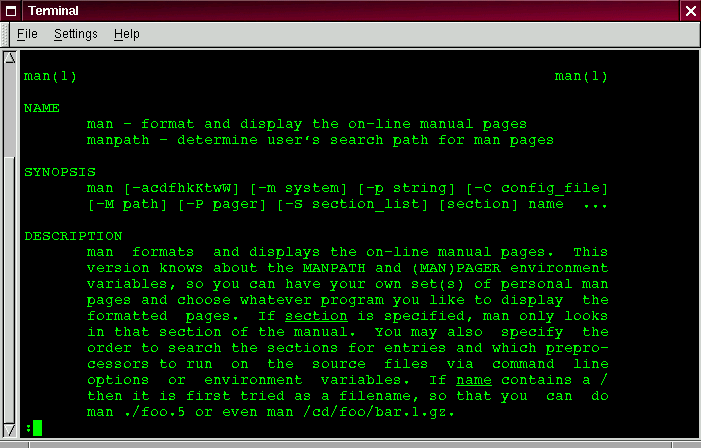
Of course, like any good help system, the man command has its own man page. At the prompt, type
to display the manual page (as shown in Figure 2-18). If you want to print: Sometimes, just viewing the man page on the screen isn't enough; you may want to have a printed copy in front of you. Although you could send the page to a printer, because of certain text formatting in the man pages, you could end up with a document filled with "garbage," symbols which didn't translate from your screen to the printer. Before you print, then, you may have to "strip" the formatting from the page, which you can do with the col command. (As you might guess, there's a man page for col, also.) For example, to print a man page for the man, type:
In detail, the above command "sends" the output of the manual page entry through the col filter, which helps format the output for the printer. Then, the output from col is sent to the printer. This is called piping, and you can learn more about it in Chapter 3. |
|
||||||||||