| Red Hat Documentation |
 |
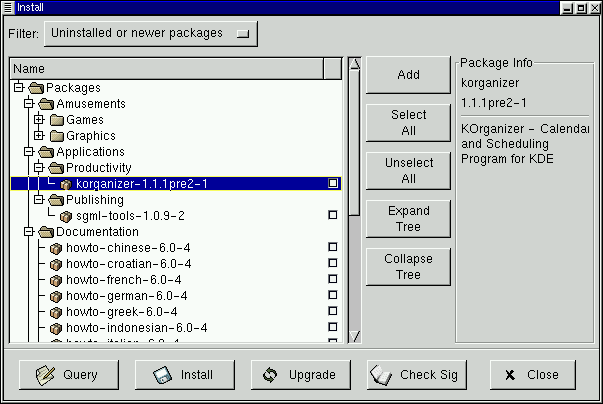
Installing New PackagesYou can install new packages by choosing the Install button from the toolbar. Gnome-RPM provides you with a choice of package views (as shown in Figure 6-3). You can filter your views for
You can switch the display of packages by using the drop-down bar at the top of the window.
Choose the Add button. By default, if your CD-ROM is mounted with a Red Hat Linux CD, Gnome-RPM will search in /mnt/cdrom/RedHat/RPMS for new packages. (You can find this default option in the Install Window tab of the Preferences dialog. See the section called Basic Configuration for more information on this feature.) If no packages are available in the default path, you'll be presented with an Add Packages window from which you can select the appropriate location of your new package. To choose a package, double-click on it with your mouse, or add a check in the checkbox next to the package, then click on the Add button. Within this Install window, you have the option of installing or upgrading packages: If the package has not been installed on your system, you'll find an Install button at the bottom of the window. If the package already exists on your system and you're querying a newer release, the Package Info window provides an Upgrade button, which will perform an upgrade to newer releases. You can also "drag and drop" packages from the GNOME File Manager and place them into the Install window. To accomplish this, open the File Manager (GNOME Panel => File Manager). Locate the directory in which your packages can be found, left-click once on the package name and "drag" the file by keeping your finger pressed on the mouse button, releasing the pressure (and the package) once you're over the Install window. You'll see a progress indicator when your package is being installed. |
|
||||||