| Red Hat Documentation |
 |
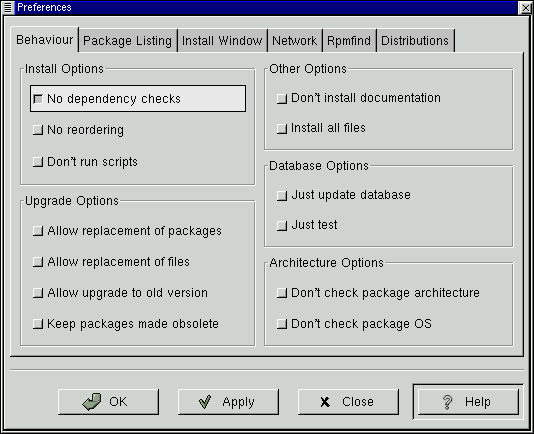
Basic ConfigurationYou can customize Gnome-RPM through the Preferences dialog, which you can access from Operations => Preferences on the menu. To make selections in Preferences select the check boxes next to the options. Under Behavior, you'll find a number of options for configuring the way Gnome-RPM installs, uninstalls and upgrades packages. The Behavior tab is split into five sections: Install, Upgrade, Other, Database and Architecture. (See Figure 6-4 for an example.) Note that by default these boxes are not checked.
Under Install Options, you have the following choices:
Under Upgrade Options, you can select the following:
In Other Options, you can select:
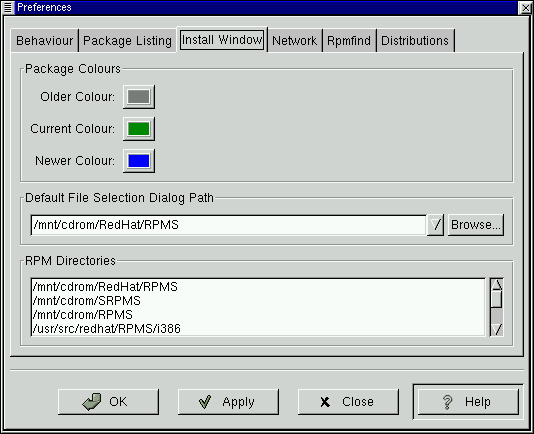
The choices available in Database Options and Architecture Options allow you to decide, among other things, whether you want to perform a "test" installation (which will check for file conflicts without actually performing an install), or whether you want to exclude packages for other operating systems or system architectures. In the Package Listing tab, you'll find a choice of displays for your packages: either as icons or as a list, which will provide more package information than the icon display. In Install Window, you can specify the path through which Gnome-RPM can find new RPMs on your system (see Figure 6-5). The default path to serach for RPMs is
Note, however, that there is a selection of paths beneath the default choice, as well as a Browse… button next to the default path. The window listing the RPM Directories contains a listing of the most likely locations in which RPM files would be found on your system. By selecting the Browse… button, you can also specify an entirely different path. Once a new path is selected, click on the Apply button to save your default path for future sessions.
Optionally, if the path for your RPMs doesn't match the default path in your preferences, you'll be presented with a browser window, which will allow you to select the correct path for your new RPMs. In the Install Window, under Package Colors, you have the option of selecting the color coding of your packages. The default color codes are set to gray for older packages, green for current packages and blue for newer packages. Such color coding can be a handy means of identifying both installed and uninstalled packages, as well as packages for which the Web find feature has located updates. In addition to using the file dialog to add files to your install list, you can "drag" files from the GNOME File Manager to add them to the list. In Rpmfind, you have settings and options which correspond to the Web find feature. The Metadata server selection sets the server to be used for searches. The Download dir: entry allows you to specify where you want the files to be stored.
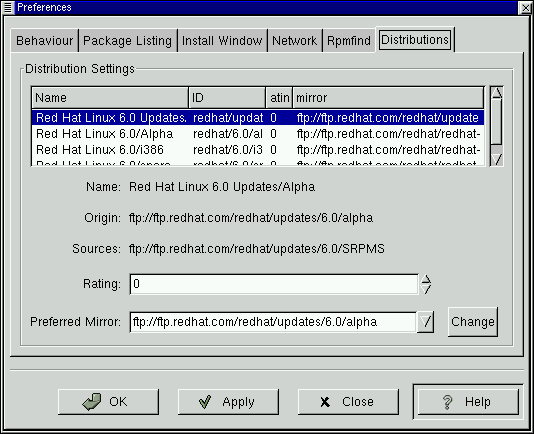
In Distribution Settings, you can set the options for choosing the most appropriate package out of the selections Rpmfind returns, as well as which mirror you would like to use. The higher the rating you indicate for your selection (as shown in Figure 6-6) the higher the priority it will receive; the lower rating, such as "-1," will specify that packages not be recommended. |
|
|||||||