| Red Hat Documentation |
 |
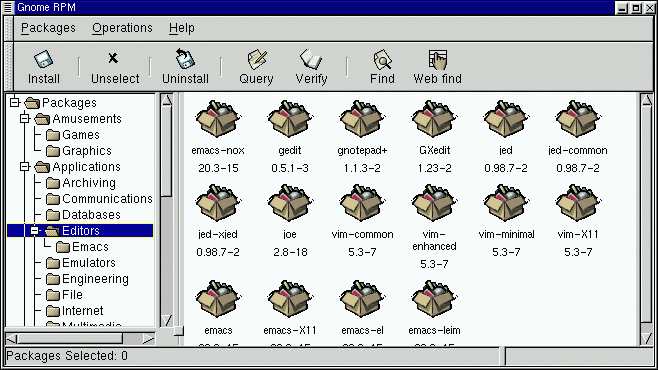
Using Gnome-RPMGnome-RPM was written by James Henstridge (<james@daa.com.au>); RPM 3.0 support was written by Red Hat and additional rpmfind code was written by Daniel Veillard. Gnome-RPM is a fast, convenient tool for working with RPMs; with such features as Web find, it's also a powerful utility which allows you to easily search for new RPMs on the Internet. You can start Gnome-RPM (which is also referred to as gnorpm) from the shell prompt in your user account, and from both the shell prompt and the GNOME Panel if you have logged in as root (rather than performing an su from your user account). To start Gnome-RPM from the Panel, go to the Main Menu Button => System => Gnome-RPM. To start Gnome-RPM from the shell prompt, type gnorpm. When the application starts, you'll see a window similar to Figure 6-1. The Package WindowThe main window will appear similar to Figure 6-1.
The Package DisplayEach folder icon in the tree view at left represents a group of packages. Each group can contain subgroups. Groups are used to place packages that perform similar functions in similar locations. This tree view is expandable. A folder which appears with a + next to it indicates that there are subfolders within that category. To view the packages and subgroups within a group, click once on a folder or a + with your left mouse button. The display window will then show you the contents of that folder. By default, you'll see icons to represent the packages. You can change customize your view by selecting View as list from the Interface tab you'll find under Operations => Preferences. Selecting PackagesTo select a single package, click on it with the left mouse button. You'll notice that highlighting will appear around the package's title (as shown in Figure 6-2). To unselect it, either click on an empty space in the display panel with the left mouse button, or click on the Unselect button on the toolbar.
To select more than one package incrementally, left-click with your mouse button, while holding down the Ctrl key; you'll see highlighting around each additional selection. The status bar at the bottom of Gnome-RPM will display the total number of packages you have selected. |
|
||||||