| Red Hat Documentation |
 |
Ownership and PermissionsEarlier in this chapter, when we tried to cd to root's login directory, we received the following friendly message:
That was one demonstration of Linux's security features. Linux, like UNIX, is a multi-user system, and file permissions are one way the system uses to protect against any type of tampering -- malicious or accidental. One way to gain entry when we see we're denied permission is to su to root, as we learned earlier. That's because whoever knows the root password has complete access.
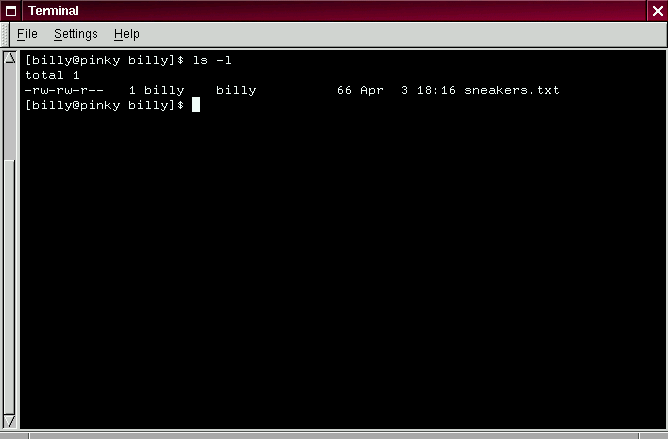
But switching to superuser isn't always convenient -- or smart, since it's so easy to mistakenly mess up important configuration files. All files and directories are "owned" by the person who created them. We created the file sneakers.txt in our login directory, so sneakers.txt "belongs" to us. That means, we can specify who's allowed to read the file, write to the file or, if it's an application instead of a text file, who can execute the file. Reading, writing and executing are the three main settings in permissions. Since every user on the system is placed into a group when that user is created, then we can also specify whether certain groups can read, write to, or execute our file. Let's take a closer look at sneakers.txt with the ls command using the -l (long) option (see Figure 3-16).
There's quite a bit of detail here. We can see who can read (r) and write to (w) the file, as well as who created the file (billy) and to which group the owner belongs (billy).
Other information to the right of the group includes the file name, date and time of its creation as well as size. How do all those dashes and letters fit together? It's not as hard to read as it might seem. Let's take a look:
There are 10 slots in this column. The first slot represents the type of file. The remaining nine slots are actually three sets of permissions for three different categories of users. Those three sets are: the owner of the file, the group in which the file belongs and "others," meaning users and groups other than the owner of the file (billy) and those in billy's group (which is also billy). Let's stretch out these file settings a bit:
The first item, which specifies the file type, can show one of the following:
Beyond the first item, in the following three sets, we'll see one of the following:
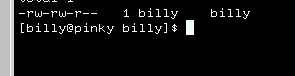
When we see a dash in owner, group or others, it means that particular permission hasn't been granted. Let's look again at first column of sneakers.txt and identify its permissions. (See Figure 3-17)
The file's owner, billy, has permission to read and write to the file; it's not a program, so billy doesn't have permission to execute it. The group, billy, has permission to read and write to sneakers.txt, as well. Similar to the program notation for owner billy, there's no execute permission for group billy. In the last set, we can see that those who aren't either the user billy or in the group called billy can read the file, but can't write to it or execute it. We can use the chmod command to change a file's permissions. Let's work a bit more on sneakers.txt to change the permissions with the chmod command. The original file looks like this, with its initial permissions settings:
As long as we're the owner of the file -- or we're logged into the root account -- we can change permissions in any combination of settings for the owner, group and others. Right now, the owner (that's us) and our group (which is billy) can read and write to the file. Anyone outside of our group -- for example can only read the file (r--).
In this case, however, let's say that we want to allow everyone to write to the file, so they can read it, write notes in it and save it. That means we'll have to change the change the "others" section of the file permissions. Since we're the owner of the file, we don't have to su to root to do it. Let's take a look at the file first. At the shell prompt, type:
which gives us this file information:
Now, type the following:
To check our results, we can list the file's details again. Now, the file looks like this:
There's our result: Now, everyone can read and write to the file (Figure Figure 3-18). When we typed o+w, we were saying, "for others, add write permission to the file sneakers.txt." If we want to remove all access permission from sneakers.txt (even though it's only a sketchy shopping list), we could use the chmod command to take away both the read and write permissions like so:
and the result will look like this:
By typing go-rw, then, we were saying "for the group and others, remove read and write permission to the file sneakers.txt." You might think of these settings as a kind of shorthand when you want to change permissions with chmod, because all you really have to do is remember a few symbols and letters with the chmod command. Here a list of what the shorthand represents:
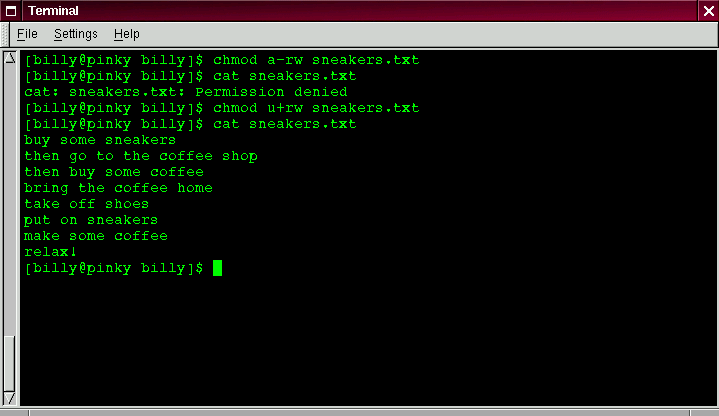
Want to test it out? Let's remove all permission from sneakers.txt -- for everyone.
Now, let's see if we can read the file:
Guess it worked; even we can't get into the file. But since the file belongs to us, we can always change permission to allow us read and write access. (See Figure 3-19)
Here are some common examples of settings that can be used with chmod:
By adding the -R option, we can change permissions for entire directory trees. There's a slight twist, however, because we can't really "execute" a directory as we would an application. Instead, when we add or remove execute permission for a directory, we're really allowing (or denying) permission to search through that directory. To allow everyone read and write access to the tigger directory in our login directory, we just type:
But… If we don't allow others to have execute permission to tigger, it doesn't matter who has read or write access, because no one will be able to get into the directory -- unless they know the exact filename they want. For example, let's type:
to remove execute access to all. Here's what happens now when we try to cd to into tigger:
Let's restore ours and our group's access.
Now, if we check our work with ls -dl we'll see that only others will be denied access to tigger. |
|