| Red Hat Documentation |
 |
A Larger Picture of the FilesystemEvery operating system has a method of storing its files and directories so that it can keep track of additions, modifications and other changes. In Linux, every file is stored on the system with a unique name, in directories which can also hold other files and directories -- or, subdirectories. You might think of the system as a tree-like structure, in which directories "branch off." Those directories may contain -- or be the "parent" of -- other directories which may hold files or directories of their own. There wouldn't be a tree without a root, and the same is true for the Linux filesystem. No matter how far away the branches, everything is connected to the root, which is represented as a single forward slash (/). It might seem confusing to have several references to "root" - the root account, the root account's login directory and the root directory (/), but think of it this way: The root login, who is the system administrator, is just as important to keeping things together in the system as the system's root (/).
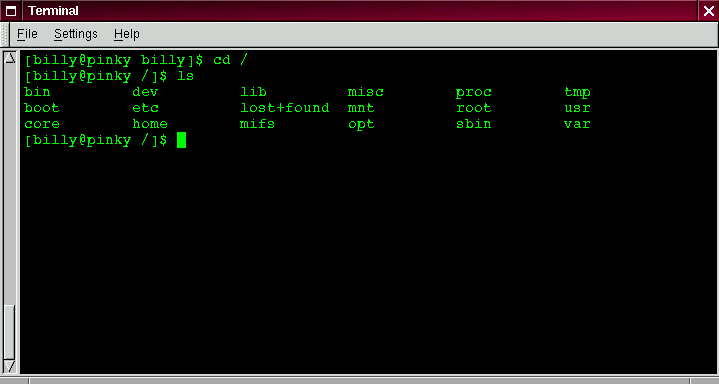
As long as we're logged into our user account -- which will help prevent disastrous mistakes -- let's take a look around. The first stop on this tour ought to be the root directory, which will give us a larger picture of where things are. At the shell prompt, then, let's type:
We'll see a prompt which looks like:
Now, let's see which directories "branch off" root by typing:
Doesn't look like much, does it? Well, it's a little like viewing the tip of an iceberg. These are the parent directories of other directories, in which there may be other directories… and so on. Here are just a few of the directories we're likely to find:
There are more, but let's take a look in the /etc directory.
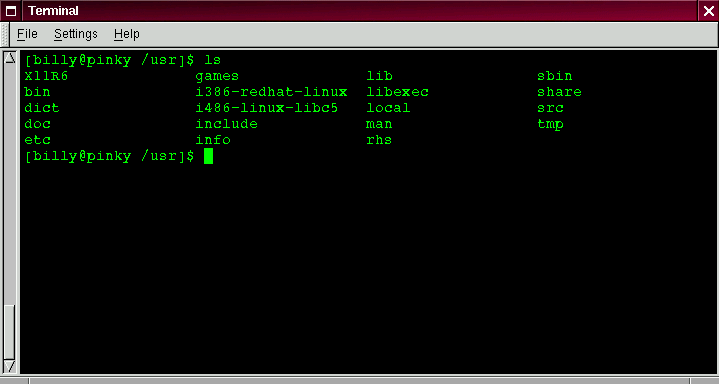
Here, among other types of files and directories, we'll find configuration files, which are files that help make programs work for our system, store our program and system settings and more. Among the directories in here, you'll see /etc/X11, which also contains directories and configuration files for the X Window System. In the directory /etc/skel, you'll find skeleton user files, which are used to populate newly created user accounts with standard, commonly used files. That sounds a little gothic, perhaps, but here's what it means. When we were logged in as root, one of the first tasks we undertook was to create a user account. When that user account was created, files were taken from /etc/skel and placed into the new account. These files helped to "flesh out" the account (skeleton… flesh… get it?). Let's look around a little in /usr. From our current location in /etc/skel, we can type:
In /usr, we're going to find a number of directories which hold some of our system's most important programs and files (see Figure 3-10). In /usr/man we'll find the system manual pages; other documentation which isn't covered by man pages will be found in /usr/doc and in /usr/info. In /usr/X11R6, we'll find files related to the X Window System, including configuration and documentation files. Although we may think of something more literary when we hear the word "libraries," in /usr/lib we'll find files which are considered libraries for our system. In this context, libraries are files containing commonly used snippets of code which can be shared by many programs. Red Hat Linux uses the RPM (the Red Hat Package Manager) technology of software installation and upgrades. Using RPM, either from the shell prompt or through Gnome-RPM, is both a safe and convenient way to upgrade or install software. (For more on using Gnome-RPM, see Chapter 6, or turn to its chapter in the Red Hat Linux Reference Guide.) However, once you become more comfortable with your system, there may be times when you'll want to install software that may not be available in RPM format. To minimize collisions with RPM-managed files, the best place to put such software is in /usr/local. |
|