| Red Hat Documentation |
 |
Getting from Here to There: cdWhenever you want to change directories, all you've got to do is type:
Go ahead, try it in an Xterm window. That didn't do much, did it? That's because you didn't tell your system where you wanted to go. Whether you're going to a store in a mall or to visit relatives across the country, you've got to know how to get from one point to another. That is, you'll need to know the path to follow. As with anything in life, the path -- or, pathname -- is basically the set of directions that takes you from one point to another. In the case of your Linux system (and in the DOS/Windows world, as well), you state a path to take you from one directory or file to another. Let's try it again. Open an Xterm window. Find yourself first with the pwd command. When you type your commands, your window will look like:
Now that you see where you are, you can start to give your system the path to follow. Well, almost… Try typing:
What happened? You know there's a directory called home, and you typed in the path. So why does it say no such file or directory? It means your path is incomplete. Try typing:
Now you've successfully changed directories and moved from your login directory into the subdirectory called home. The difference, of course, was adding the forward slash. Let's take a second to look at the reason adding a slash made all the difference. When you saw you were in /home/billy, you were looking at the full path -- or the absolute path from the root directory. You can think of the billy directory as being located two directories "down" from the root, which is the topmost level of your system. So when you typed:
you were actually saying "go to the root directory, then go to the directory called home, which is one directory below the root." You specified an absolute path to get to the home directory. Now, if you type:
you'll end up with a prompt that looks like:
That single forward slash means you're at the root. When you're at the root, you can't go any higher on your system (the same is true in DOS/Windows). To get back to your login directory from the root directory by using the absolute path, just type:
You're home. Using the absolute path is just one way to move around. Another method of getting from one point to another is by using the relative path (as in Figure 3-3). Let's go back to the root directory:
Now, let's move back to your login directory using relative pathnames:
Notice that the first / is missing? That's because the root directory is the parent of the home directory, which means that the home directory is one step down from the root directory. Since home is the parent of the directory called billy, these two directories are separated with a /. If you're in your login directory, you can move up one directory, to home, just by typing:
The relative path describes the directory you want to cd to in terms which are relative to your current directory. When you typed cd .., you were saying "go up one directory." The next directory up, from your login directory, was home.
Using two dots (..) when you cd is the same as stating you want to go to the parent of your current working directory. Try using a single dot. Type:
What happened? Not much. That's because using a single dot (.) is the same as specifying your current working directory. The differences between absolute and relative paths can sometimes be pretty striking. Getting back to our shopping mall analogy, if you were to give directions by using an absolute path, you might say something like: "Get the car keys. Get in the car. Start the car. Pull out of the driveway. Drive to the corner…" …And so on, until you're finally standing inside your favorite shoe store in the shopping mall. When you're using a relative path, you're saying something like: "The store's a couple miles from here, in the shopping mall." That's quite an exaggeration, but you get the idea: As long as you know where you want to go in relation to where you are, you can use relative paths.
You're now in the home directory, the parent of your login directory. Type:
and you'll find yourself at the root directory. Using relative paths, get yourself back to your login directory by typing:
Doesn't look much different from absolute paths, does it? Notice, though, that there's no forward slash in front of home. In essence, you were saying, "go one directory down, to home, then go to billy, in the home directory."
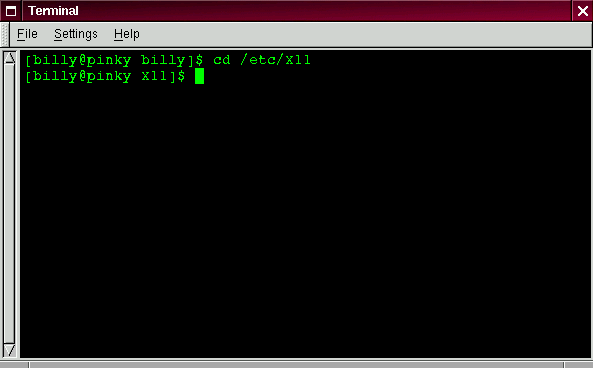
That wasn't much of a demonstration. Instead, from your login directory, type:
Now, you're in the directory X11, which is where you'll find configuration files and directories related to the X Window System.
Take a look at your last cd command. What you were really telling your system was, "go up to the parent directory, then up to that directory's parent directory (which is the root directory), then go to the etc directory and from there, to the X11 directory." Using an absolute path would also get you to the X11 quickly. Type:
and you're there.
Now that you're starting to get the hang of changing directories, see what happens when you change to root's login directory.
Oops… You're not logged in as root, so you're "denied permission" to access that directory. Denying access to the root and other users' accounts (or login directories) is one way your Linux system prevents accidental or malicious tampering. You'll find out more about file "ownership" and permissions later in this chapter. Really want to change to the root login? Then you've got to use the su command. Type this series of commands:
As soon as you give the root password, you'll see the changes in your command prompt to show your new, superuser status: the root account designation at the front of the prompt and "#" at the end (as shown in Figure 3-4). Now, when you cd to root's login directory, you'll be granted access. When you're done working as root, just type exit at the prompt.
|
|