| Red Hat Documentation |
 |
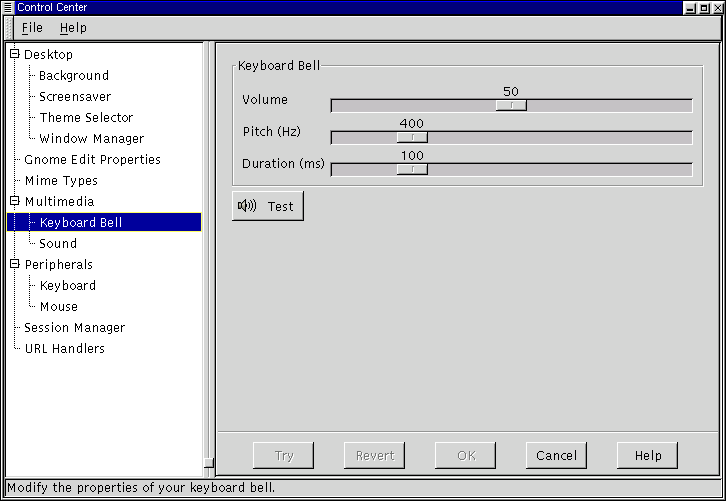
Multimedia CappletsKeyboard BellThe Keyboard Bell capplet allows you to change the bell sound that is produced by your CPU speaker when a keyboard error or message is sent. Volume changes the actual volume of the bell. The pitch slider will change the pitch of the note that is played. By default it is set to 440Hz, or the A above middle C. Duration changes the length of time the tone is played. The Test button will allow you to hear the current settings of your keyboard bell. Figure 17-9. The Keyboard Bell Capplet
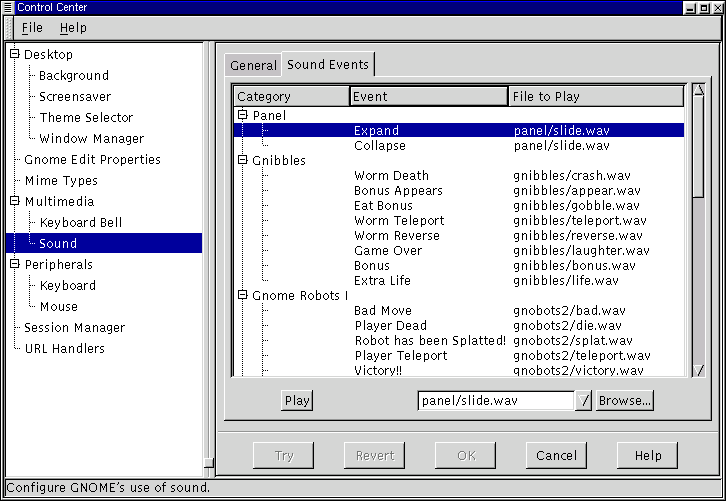
The Sound CappletThe Sound capplet allows you to set the system sounds for your GNOME session. There are two tabs to select in the sound capplet: General and Sound Events. General Tab - At this point you have two options to choose from in the General tab, enabling sound for GNOME and for events. If you select Enable Sound for GNOME you will make sure that GNOME's sound engine (ESD) will be launched every session of GNOME you run. Enable sound for events will launch any sound files you have set in the Sound Events tab when those events occur. With these two items enabled you will utilize GNOME's session management, which will remember your sound settings whenever you log in or out. Sound Events Tab - This tab allows you to navigate through the sound events in GNOME and change their sounds. To change a sound associated with a GNOME event select the event in the hierarchical list on the left and press the Browse button to find a sound file on your system that you wish to associate with that event. Once you have found a sound file you may press the Play button to test the sound and see if you like it enough to hear it every time the event occurs. Figure 17-10. The Sound Properties Capplet
|
|
||||||