| Red Hat Documentation |
 |
Partitioning with fdisk
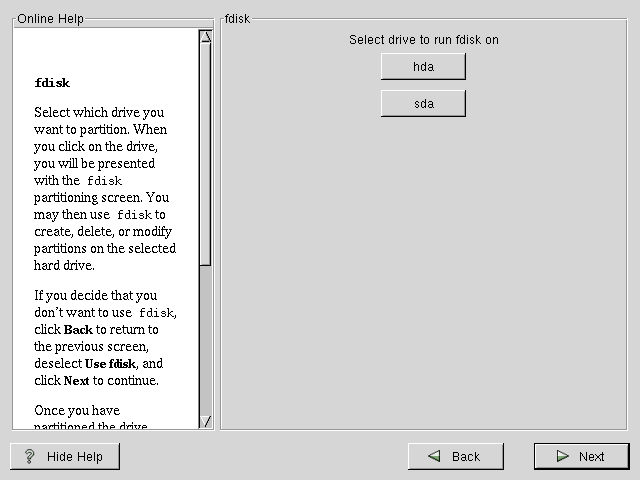
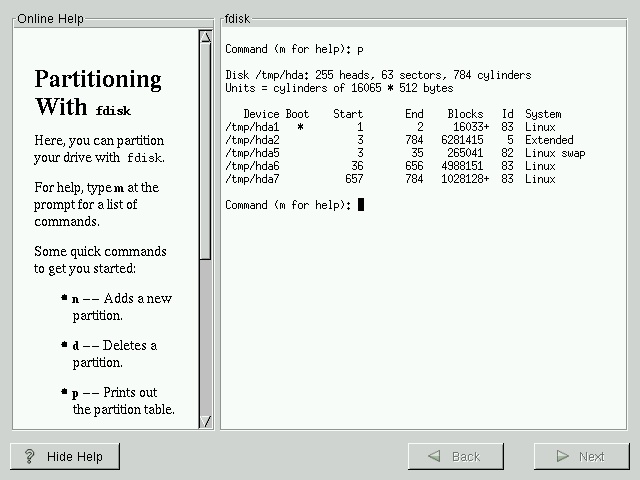
This section applies only if you chose to use fdisk to partition your system. If are not using fdisk, please skip to the section called Automatic Partitioning for automatic partitioning or the section called Partitioning Your System for partitioning with Disk Druid. If you have chosen to use fdisk, the next screen (see Figure 6-1) will prompt you to select a drive to partition using fdisk. Once you have chosen which drive to partition, you will be presented with the fdisk command screen (see Figure 6-2). If you are unsure as to what command you should use, type m at the prompt for help. Please refer to the Official Red Hat Linux Reference Guide for an overview of fdisk. When you've finished making partitions, type w to save your changes and quit. You will be taken back to the original fdisk screen where you can choose to partition another drive or continue with your installation. After you have partitioned your drive(s), click Next. You will then use Disk Druid to assign mount points to your partitions. You will not be able to add new partitions using Disk Druid, but you will be able to edit those you have already created. Skip to the section called Choose Partitions to Format for further installation instructions. |
|
||||||||||