| Red Hat Documentation |
 |
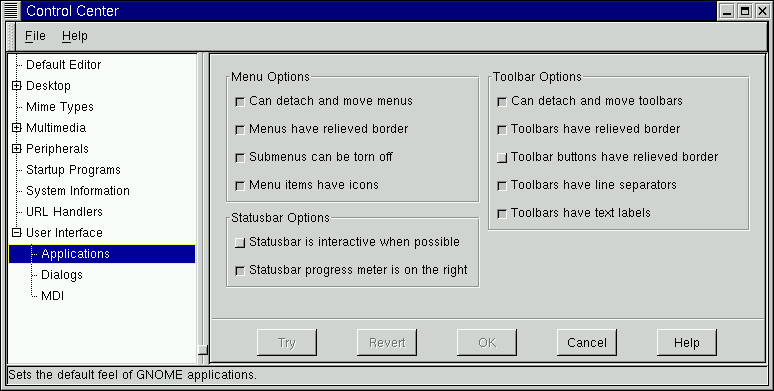
User Interface OptionsThe User Interface Options allows you to change the appearance of applications that are GNOME-compliant. You may recognize these applications as ones that are pre-installed with GNOME or ones that say they are built with GTK(the GIMP Toolkit). Application DefaultsThe Application Defaults capplet allow you to change certain user interface aspects of your GNOME compliant applications.
Figure 17-14. Applications Defaults Capplet
DialogsThe Dialogs Capplet will allow you to change the default settings for dialog boxes in GNOME compliant applications. A dialog box is a window that is launched by an application to help perform a task needed by that application. An example of a dialog box is a Print dialog which appears when you press a print button. The dialog allows you to set print options and start the print process. The Dialogs capplet will allow you to change the following options: Dialog buttons - Choose to use the default buttons, buttons more spread out, put buttons on the edges, put the buttons on the left with left-justify, and put buttons on the right with right-justify. Dialog buttons have icons - Some dialog buttons (for example "OK") can have icons on them. By default the applications which provide this have the icons turned on. If you wish not to see them you may turn off this feature. Use statusbar instead of dialog when possible - You may tell applications to use the statusbar instead of a dialog if the application will allow it. This will only work with dialogs that provide information not one that require some interaction on your part. Dialog position - This will let you choose how the dialogs appear when launched. You can let the window manager decide for you (or how you have defined it in the window manager configuration), center the dialogs on the screen, or drop them where the mouse pointer is when they are launched. Dialog hints - This will let you change the behavior of the dialog hints which are the tooltips that appear when you move your mouse button over a button or part of the dialog. You may choose to have hints handled like other windows, or let the window manager decide how to display them. Place dialogs over application window when possible - You may choose to place dialog over the applications when possible which will help you keep your windows organized on your screen If you are familiar with other operating systems you may wish to keep this selected as this is how most operating systems handle dialogs.
Figure 17-15. Dialog Capplet
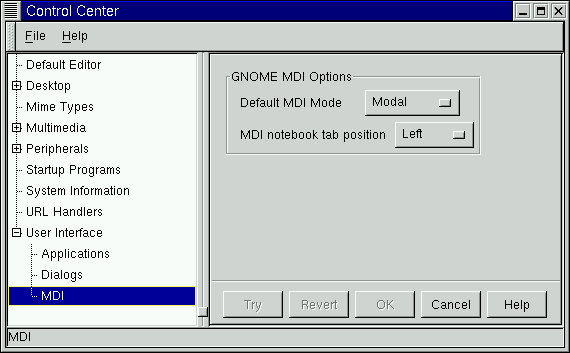
MDIThe MDI capplet allows you to change the MDI mode for GNOME applications. MDI stands for Multiple Document Interface and refers to the how more than one document is displayed in GNOME applications.
The default style in GNOME-compliant applications for MDI is usually tabs or "notebooks" If you do not like the tab look you may change it here. Deafault MDI Mode - In addition to Notebook, you will find, Toplevel and Modal. Notebook is the default tab look, Toplevel displays only the active document on the top view until it is closed and Modal has only one toplevel which can contain any of the documents at any one time, however only one can be displayed. If you have ever used Emacs Modal is very similar to the way Emacs handles buffers. MDI notebook tab position - If you choose to use the Notebook style you may then decide where you want the tabs to appear in your applications. You may have them at the top, left, right, or bottom of your application. Keep in mind that these choices will affect applications that are GNOME compliant. Figure 17-16. MDI Capplet
|
|
||||||