Download
 Online Shop
 Red Hat Network
|
|
|
Download
Online Shop
Red Hat Network
|
|
|
||
|
||
|
|
| Red Hat Documentation |
 |
E-Mail and News Settings for MessengerTo read and send messages, you'll have to enter your settings in the Mail & Newsgroups category of Communicator (Edit=>Preferences). You'll also be able to save other related options in this category. Entering Account InformationWhen you select Mail & Newsgroups, the category will expand, revealing sub-entries for your account information (see Figure 7-6). General OptionsOn the first dialog to the right of the categories, you can select how you want to have quoted messages appear. "Quoting" refers to material from a previous message, which appears as part of a follow-up message, such as a reply. You can also select whether you want to view mail and news with a fixed width or variable width font. Selecting Fixed width font will preserve the display of fonts throughout messages and articles. Account IdentityIn the Identity category, enter your name, your e-mail address, the name of your organization (if applicable) and the path to your signature file (see Figure 7-7).
If you want to direct users to reply to an e-mail address which is different from the primary address you're entering in this category, enter that different address in the Reply-to address field. When users reply, mail will be sent to this separate address. (This feature is optional, however; if you don't want this feature, you don't have to enter anything in this field.) Creating a SignatureA signature is a brief note at the end of an e-mail or newsgroup posting. Often witty, signatures say something about the author of the message. To create a signature, do the following, using the text editor Pico:
Now, you'll have a new file, called signature.txt, in your directory. The full path to the file will be, for example, /home/newuser/signature.txt. When you write e-mail or post a message on a newsgroup, the text in signature.txt will automatically appear at the bottom of your message. Mail ServersIn the Mail Servers category, enter the server name through which your mail is sent and delivered (see Figure 7-8). To add your account information, select the Add button. A new dialog, similar to Figure 7-9, will open. In the General tab, enter:
In the POP section:
When you're finished entering your mail account information, click the OK button to return to the Mail Servers window. In the Outgoing Mail Server section, enter the name of the mail server. Your ISP should supply you with this information.
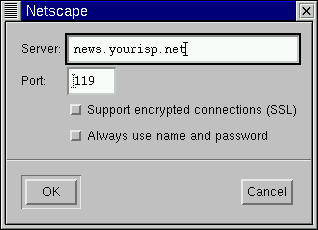
The option to Use Secure Socket Layer refers to encryption technology. For more information about security issues, refer to Netscape's online help guide. You can specify where you want your mail to be stored by either typing in the location in Local mail directory, or by clicking on the Choose button, and selecting a directory in the navigation window which opens. By default, mail will be stored in a directory in your user directory; if your name is newuser, for example, the path to the directory will be /home/newuser/nsmail. Unless you have a specific reason to choose a different directory, however, you can allow the default selection. Newsgroups ServersIn the Newsgroups Servers category, enter the server name through which you can retrieve and post newsgroup messages (see Figure 7-10). The procedure for entering the newsgroups server is somewhat similar to entering account information for e-mail services. In this instance, you must enter the name of the server to which you'll connect for access to newsgroups. Your ISP should provide you with this information. To begin, click on the Add button. In the dialog which opens (see Figure 7-11), enter the newsgroups server information supplied by your ISP. The checkboxes for Support encrypted connections and Always use name and password provide additional security options. The first option, for SSL, is similar to the reference to Secure Socket Layer in the mail configuration. Check with your ISP to determine if this option is necessary. The second option will cause Messenger to request your user name and password before connecting to your newsgroups server. This can be a useful in preventing unauthorized users from accessing newsgroups through your account. Additional OptionsThe remainder of the categories in this section allow you to modify or accept settings for such options as message formatting, addressing, and disk space use.
Once you've finished entering your settings and options in Mail & Newsgroups, you're ready to send and receive messages. Select the OK button to save your settings and exit the Preferences dialog. Now, turn to the section called Reading and Composing Mail in Messenger to learn more. Notes
| ||||||||||||||||||||
|
|
|
|
|