| Red Hat Documentation |
 |
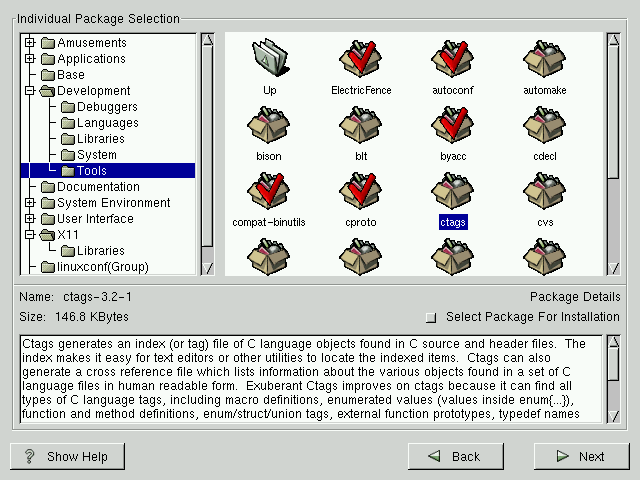
Selecting Packages to UpgradeHere, you are given the opportunity to choose which packages you would like to upgrade (see Figure 7-3). On the left side of the screen you will see a directory listing of various package groups. When you expand this list (double-click to select it) and double-click on a single directory, the list of packages available for installation will appear on the right. You can click on the + to expand the list. To select an individual package, double-click on it, or click on it once to highlight it and click on the Select Package For Installation button below. A red check mark will appear on any of the packages you have selected for installation. To read information about a particular package before choosing it for installation, left-click on it once to highlight it, and the information will appear in the window at the bottom of the screen along with the name and size of the package.
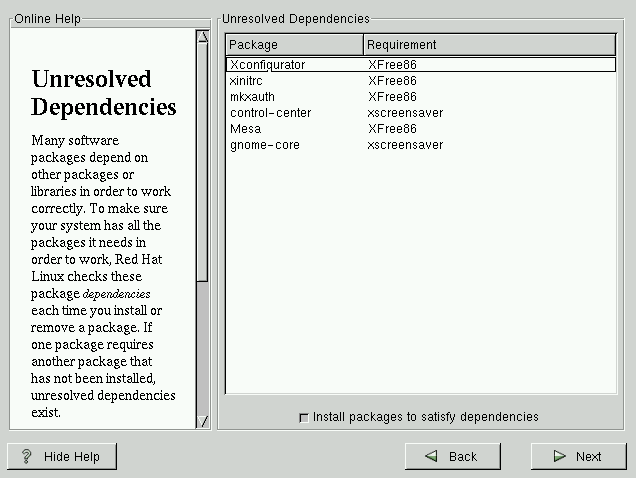
Unresolved DependenciesIf any package requires another package which you have not selected to install, the program presents a list of these unresolved dependencies and gives you the opportunity to resolve them (see Figure 7-4). The Unresolved Dependencies screen will only appear if you are missing certain packages that are needed by your customized package selection. Under the list of missing packages, there is an Install packages to satisfy dependencies check box at the bottom of the screen which is selected by default. If you leave this checked, the installation program will resolve package dependencies automatically by adding all required packages to the list of selected packages. |
|
||||||||||