| Red Hat Documentation |
 |
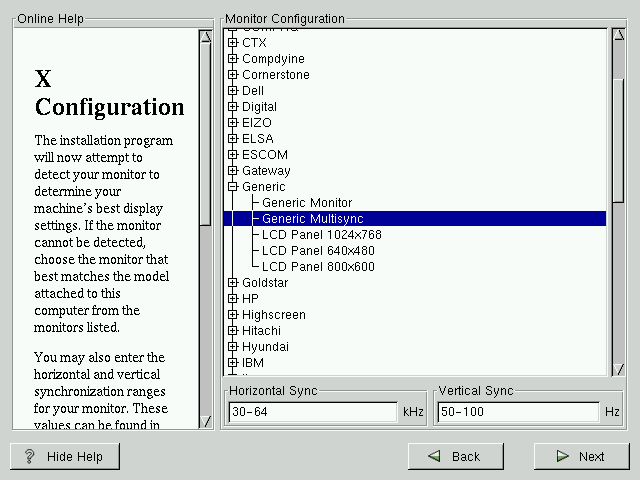
GUI X Configuration ToolIf you decided to install the X Window System packages, you now have the opportunity to configure an X server for your system. If you did not choose to install the X Window System packages, skip ahead to the section called Installing Packages. Configuring Your MonitorXconfigurator, the X Window System configuration tool, first presents a list of monitors for you to choose from. In the list, you can either use the monitor that is autodetected for you, or choose another monitor. If your monitor does not appear on the list, select the most appropriate Generic model available. If you do select a Generic monitor, Xconfigurator will suggest horizontal and vertical sync ranges. These values are generally available in the documentation which accompanies your monitor, or from your monitor's vendor or manufacturer; please check your documentation to make sure these values are set correctly.
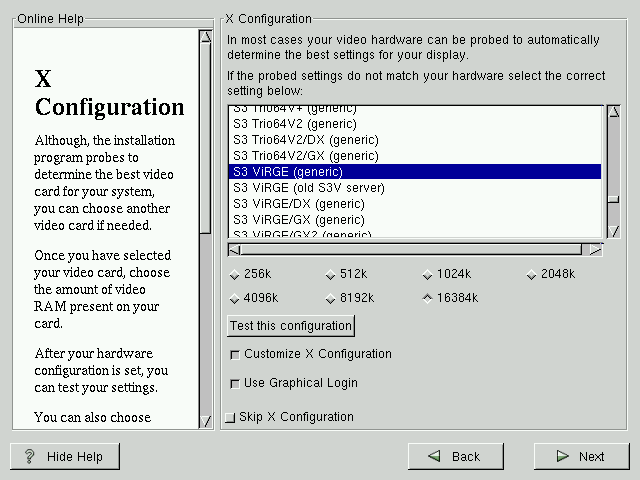
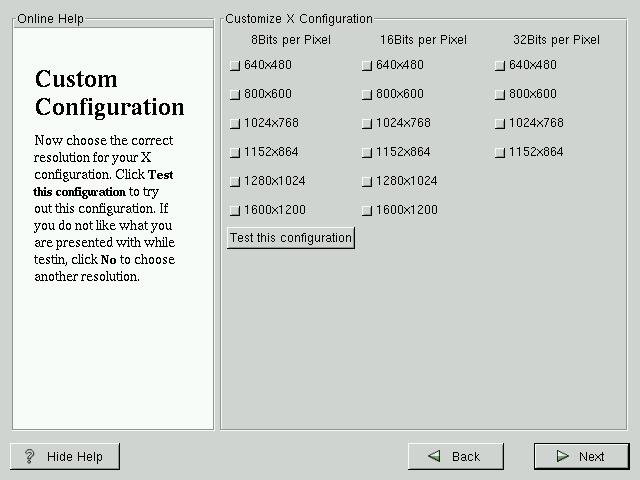
Also presented are the horizontal and vertical ranges that Xconfigurator suggests. Click Next when you have finished configuration of your monitor. Video Hardware ConfigurationNext, Xconfigurator will probe for any video hardware you have (see Figure 4-18). Failing that, Xconfigurator will present a list of video cards and monitors for you to select from. If your video card does not appear on the list, XFree86 may not support it. However, if you have technical knowledge about your card, you may choose Unlisted Card and attempt to configure it by matching your card's video chipset with one of the available X servers. Next, Xconfigurator prompts you for the amount of video memory installed on your video card. If you are not sure, please consult the documentation accompanying your video card. You will not damage your video card by choosing more memory than is available, but the XFree86 server may not start correctly if you do. Once your hardware has been determined, you can test the configuration settings. We recommend that you do test your configuration to make sure that the resolution and color is what you want to work with. If you would like to customize the X configuration, please make sure the Customize X Configuration button is selected. If you choose to customize, you will be presented with another screen that lets you select what your resolution should be (see Figure 4-19). Again, you will have the option of testing the configuration. You may also choose to Skip X Configuration if you would rather configure X after the install or not at all. |
|
||||||||||