About Red Hat Partner Programmes Training Support and Docs Products and Services
  downloadstorecart
red hat logo search    
redhat.comredhat network
Red Hat Documentation

Installation Complete

Installation Complete

Congratulations! Your Red Hat Linux 6.2 installation is now complete!

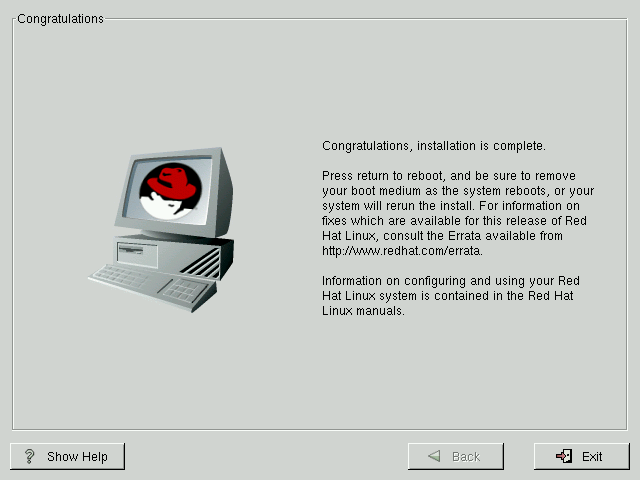
The installation program will prompt you to prepare your system for reboot (see Figure 4-23). Don't forget to remove any diskette in the floppy drive or CD in the CD-ROM drive. If you did not install LILO, you'll need to use your boot disk now.

After your computer's normal power-up sequence has completed, you should see LILO's standard prompt, which is boot:. At the boot: prompt, you can do any of the following things:

  • Press Enter -- Causes LILO's default boot entry to be booted.

  • Enter a Boot Label, followed by Enter -- Causes LILO to boot the operating system corresponding to the boot label. (Press ? at the boot: for a list of valid boot labels.)

  • Do Nothing -- After LILO's timeout period, (which, by default, is five seconds) LILO will automatically boot the default boot entry.

Figure 4-23. Installation Complete

Do whatever is appropriate to boot Red Hat Linux. You should see one or more screens of messages scroll by. Eventually, you should see a login: prompt or a GUI login screen (if you installed the X Window System and chose to start X automatically).

TipTip
 

If you're not sure what to do next, we suggest you begin with the Official Red Hat Linux Getting Started Guide as an introduction to using Red Hat Linux. The Official Red Hat Linux Getting Started Guide covers topics relating to the basics of your system.

If you are a more experienced user looking for information on system configuration or administration topics, you may find the Official Red Hat Linux Reference Guide to be more helpful.


© 2001 Red Hat, Inc. All rights reserved.       About Red Hat   :   Legal statement   :   Privacy statement   :   Y2K statement   :   Contact Red Hat