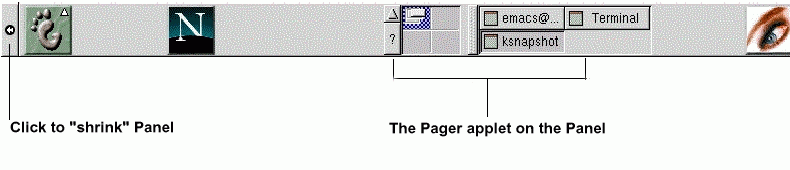
Like much of GNOME, the is highly configurable
(see Figure 2-4).
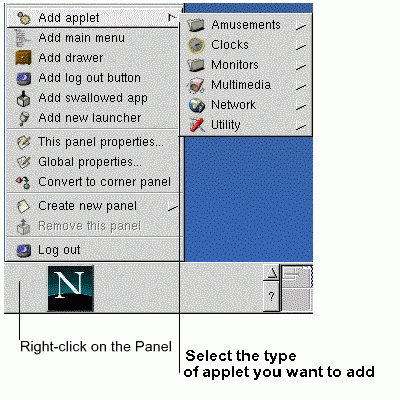
From the , you can launch applications and
applets, small applications and utilities which
are meant to be docked into the panel. Among the applets already running
on the are the GNOME
Pager and clock applet.
Like KDE, you can
hide the by clicking on
one of the arrows at either of its borders. You can also
auto-hide the , making it
appear to sink beneath the frame of your screen (it will return when you
hold your cursor over the minimized space). To enable the auto-hide
feature, right-click on the , select
This panel properties and choose Auto
hide in the Minimize options section.
 | Elements of the GNOME Pager |
|---|
| | The GNOME Pager consists of the
Desk Guide, which is a visual representation
of your desktops, and the
Tasklist, which shows your running
applications -- either minimized or opened on the desktop.
For more on the Desk Guide and
GNOME Pager, see the section called Multiple Desktops.
|
Other applets which can enhance productivity and enjoyment range from a
mail checker and a CD player to system monitors. Applications, folders
and applets can be docked on the , so that they
can be launched with a single click of the button.
To add an applet:
You can also customize the , add more than one
to your desktop, or convert the current
orientation of the from horizontal to
vertical. By clicking on the arrows which appear at either end, you
can "shrink" the to appear in a corner
of the Desktop, rather than extend across the screen (as in Figure 2-4).
| Switch tasks quickly |
|---|
| | One way to bring currently running applications to the front is
to press
Alt-Tab. To scroll
through the tasks, hold down the Alt key, while
pressing the Tab key in succession. When you've
found the task you want to bring to the front, stop
pressing the Tab key and release the
Alt key.
|



 Download