Once you've configured your PPP account, you can view websites for
information, entertainment, software and more.
You can also send and receive e-mail -- the most popular online
activity. And, you can trade information on
newsgroups, which are essentially international
bulletin boards covering thousands of subjects.
Before you can use e-mail or read newsgroups, however, you'll have to
configure your e-mail and news applications, or
clients. You can find two of the most popular mail
and news clients in Netscape Communicator,
included with your copy of Red Hat Linux.
In this chapter, you'll learn how to customize Netscape
Communicator's browser, e-mail and news applications. A
suite of applications,
Communicator contains:
Navigator -- for finding information on the
World Wide Web
Messenger -- for sending and receiving
e-mail and news
Composer -- for creating and publishing
your own Web pages
We'll concentrate on Navigator and
Messenger in this chapter.
Lynx: A lean and mean alternative
browser
You'll probably use Navigator for your Web
browsing. But your Red Hat Linux system also includes a useful browser called
Lynx. What is
Lynx? It's a "general purpose" browser for
character-cell displays; it will display the
content of pages on the Web, but not the images. It's very fast, and can
be an excellent alternative for you if you're interested in reading
information, without having to wait for graphics.
To give Lynx a try, open an Xterm window and
type lynx at the prompt. You'll find a list of
options at the bottom of the screen. To go to a site, for example, use
the G key and enter the website address; to quit, press
the Q key.
To learn more about Lynx, type man
lynx at the shell prompt; or, if you want to print the
document, type man lynx | col -b | lpr.
You'll find the Netscapeicon on the Panel in GNOME and
on the desktop in KDE.
To begin Navigator, click once on the
icon. When the browser first starts, you'll be asked to read and agree
to the software license. Click on the Agree
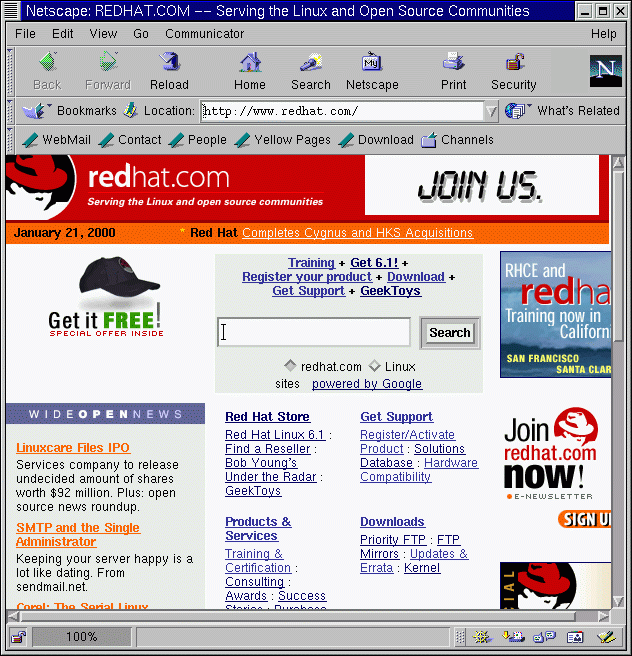
button to proceed. Once the browser starts, it should look like Figure 7-1.
Figure 7-1. A Typical Navigator Window
The top row containing the icons is called the Navigation
Toolbar. Selecting the icons will perform the following
actions:
Back -- Returns you to a previously viewed
page. To jump back several pages, left-click on the icon and hold
down the mouse button to reveal a pull-down menu of previously
viewed pages. Drag and release the cursor to your chosen page.
Forward -- When you've moved back to
previously viewed pages, selecting this button will take you
forward, toward your last viewed page.
Reload -- "Refreshes" the current page in the
browser. This can be useful, for example, if you want to view a page
that's frequently updated.
Home -- Selecting this button will
immediately send the browser to whatever location specified as
your start page. For more on how to set this
feature to point to a different page, see the section called Communicator Preferences.
Search -- Sends you to a search
engine page. Search engines allow you to locate
information, people, merchandise and more.
Print -- If you have configured a printer,
selecting this button will print the current page.
Security -- Displays security information
about the current page, as well as
encryption information (which aids in
security) about your browser.
Stop -- Stops loading the page into the
browser.
To browse other websites, just click on the hyperlinks,
the differently colored, underlined portions of a document you view.
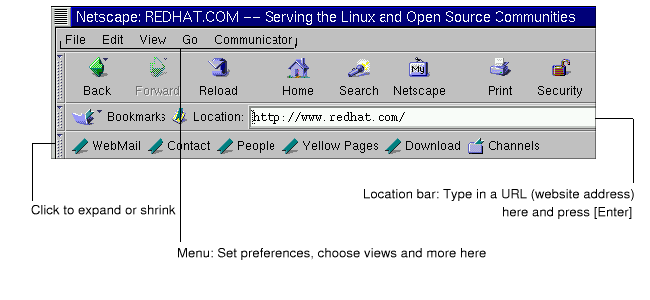
You can also visit websites by typing in the URL,
or website address, into the space provided in the Location
Toolbar (see Figure 7-2). Click
on the arrow pointing down at the right of the Location
Toolbar to see a drop-down list of previously visited sites
-- called the history list. To return to one of
these sites quickly, select it from the list.
Figure 7-2. Menu and Location Options in Navigator
Opening locations in a new window
If you want to visit other sites, without losing your place on the
page you're viewing, you can open a link in a new browser
window by right-clicking on the link and selecting
Open Link in New Window from the menu. (If you
have a three-button mouse, or you selected three-button emulation
during the installation of Red Hat Linux, you can also open a link in a new
window just by clicking on the link with the middle mouse button.)
The following table provides keyboard shortcuts you can use in
Navigator.
Communicator allows you to customize many of
its features. You can select how a Web page appears, security levels,
and more.
To enhance your browsing experience, you can customize
Navigator. From the menu, select
Edit=>Preferences to
open the options menu (see Figure 7-3).
Figure 7-3. The Preferences Item in the
Edit Menu
The Preferences section is divided into
subsections in the Category menu, including:
Appearance -- Allows you to modify the
way Navigator physically appears,
such as the colors or use of icons on the navigation bars.
Navigator -- Among other things, lets
you specify your Home page, or the page
you see when the browser starts. Also allows you to modify how
long to keep previously visited sites in a
history, for quick viewing later.
Advanced -- Allows you to specify
settings for acceptance of cookies, which
are small pieces of information stored on your computer and used
to identify you to the websites you visit. Also allows you to
modify other settings.
Each of these sections in the Preferences area
can be expanded by clicking on the arrow next to the item on the
menu. Let's look at each section in more detail:
Click on the arrow next to the Appearance
category to reveal all the related menus (see Figure 7-4).
Figure 7-4. The Appearance Category
In this category of the menu, choose among the following by
selecting the box next to its listing:
Appearance -- Along with starting the
browser, you can launch such clients as the e-mail application
and the newsreader.
Fonts -- In this section, you can
decide which font, or typeface you want
to use by default. If you're having difficulty reading the type
on sites you visit, you can adjust the typeface and size of type
here. Select your fonts and their sizes from the drop-down
lists; your selections will then be reflected in the page you're
currently viewing, so you can see their effect.
Colors -- Lets you specify which
colors you prefer for the text on pages, background and links to
other sites. You can also choose whether you want links to be
underlined in a document (links will appear only as colored text
if you deselect this option).
In the Navigator
category you'll find options for starting the browser, languages
and related applications (see Figure 7-5).
Figure 7-5. The Navigator Category
On the first screen of the Navigator
preferences, for example, you can choose to have the browser open
with a blank page, rather than automatically go to a site when it
starts.
In the Home page section of this category,
you can specify a page you want to call the home, or start page.
You can also specify that you want to have the browser automatically
open the page you're currently viewing, by clicking on the
Use Current Page button.
In the History section, you decide how long you
want to retain previously visited sites in your history list. The
history list can be a useful means of jumping to important sites you
may have visited days earlier but neglected to bookmark. In the
History expires after field, enter the number
of days you want to retain URLs in your history file. To clear the
file immediately, select the Clear History
button.
Using your history file
To open your history file, from the menu go to
Communicator => Tools =>
History.
The following category, Mail & Newsgroups,
allows you to enter your account information to use
Communicator's e-mail and newsreader
clients. For more on these settings, turn to the section called E-Mail and News Settings for
Messenger.



 Download