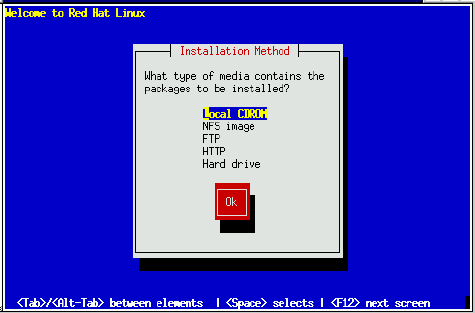
If you booted the installation program directly from the Red Hat Linux CD-ROM,
you'll next see the Welcome dialog: go to
the section called Welcome. Otherwise,
an Installation Method dialog appears. The choices presented in the
dialog vary depending on the type of diskette you booted from
(the one in your boxed set, or a network or PCMCIA diskette that you've
created). Figure 8-5 shows all available
choices.
Red Hat Linux can be installed via any of five methods described below:
- CD-ROM
You booted from the diskette in your boxed set and are
installing with the Red Hat Linux CD-ROM in a local drive.
If you chose this method, you'll next see
the Language Selection dialog: go to
the section called Welcome.
- Hard Drive
You booted from the diskette in your boxed set and are
installing from the Red Hat Linux files that you have previously
copied to a local hard drive.
If you select this method, you'll next
see the Select Partition dialog: go to
the section called Identify Disk Partition to Install From.
- NFS Image
You booted from a network or PCMCIA diskette
and are installing from an NFS Image server which is
exporting the Red Hat Linux CD-ROM (or a mirror image of one.)
If you chose this method, you'll next see
the NFS Setup dialogs: go to
the section called Installing over a Network
- FTP
You booted from a network or PCMCIA diskette
and are installing directly from an FTP server.
If you select this method, you'll next
see the FTP Setup dialogs: go to
the section called Installing over a Network.
- HTTP
You booted from a network or PCMCIA diskette
and are installing directly from an HTTP Web
server.
If you select this method, you'll next
see the HTTP Setup dialogs: go to
the section called Installing over a Network.