| Red Hat Documentation |
 |
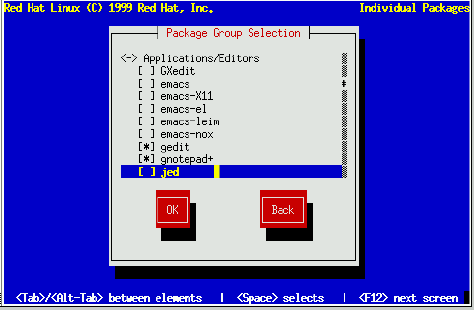
Select Packages to InstallFigure 8-33 appears only if you're doing a Custom install. Use this dialog to select the types of software packages you wish to install. In other words, you use this dialog to select components. For example, if you use the arrow keys to move to Dialup Workstation and press Space, software components needed to support dialup networking are selected for installation. Selecting Everything (which can be found at the end of the component list) installs all packages included with Red Hat Linux. Selecting every package will require close to 1.5GB of free disk space. Selecting Individual PackagesYou can also select or deselect individual packages in an application category. To do this, check the Select individual packages check box. When you select Ok, a screen like Figure 8-34 appears. For example, to see the list of packages in the Applications/Editors category, use the arrow keys to select this group and press Enter or Space. When you do, the "+" sign (closed) changes to a "-" sign (open) and a list of packages in this category appears (Figure 8-35). An "*" appears beside currently selected packages and a " " beside unselected packages. Press the Enter or Space keys to select or deselect packages. Note that some packages that are required for every Red Hat Linux system (such as the kernel and certain libraries) do not appear in the package selection dialogs. For descriptive information about software packages, turn to Appendix A. Unresolved Package DependenciesMany software packages, in order to work correctly, require that other software packages are also installed on your system. For example, many of the graphical system administration tools require the python and pythonlib packages. To make sure your system has all the packages it needs in order to be fully functional, Red Hat Linux checks these package dependencies each time you install or remove software packages. After you have finished selecting packages to install, the installation program checks the list of selected packages for dependencies. If any package requires another package which you have not selected to install, the program presents a list of these unresolved dependencies and gives you the opportunity to resolve them (see Figure 8-36). If you simply press Ok, the program will resolve them automatically by adding all required packages to the list of selected packages. |
|
||||||