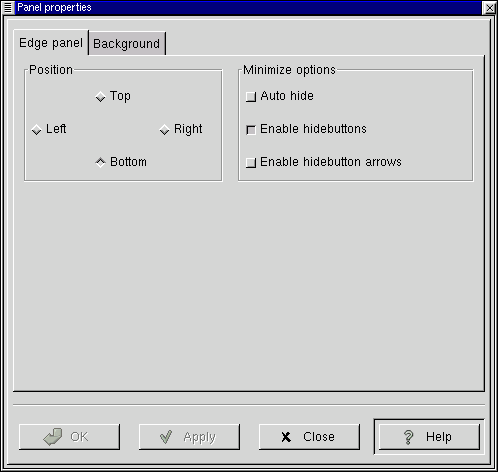
Each Panel's properties can be configured individually. To
change the configuration of the active Panel, right mouse click
on the Panel and select the menu item from the
menu. You may also press the
Main Menu button and select the
| menu item.
This will bring up the Panel properties dialog box. In this box
you can change the properties for the active Panel.
The Panel properties dialog contains two tabs to help you set the active
Panel properties: Edge Panel and Background. Both of these tabs are
explained below. If you have converted the panel to a corner panel, which
is accomplished by selecting this item in the main menu, a Corner Panel tab
will replace the Edge Panel tab.
Position - This changes the position of
the Panel on the screen. You may select either Top, Right, Left
or Bottom. The Panel will change position once you have pressed
the Apply button.
Minimize Options - The options here will enable you
to either Explicitly hide the Panel yourself using the hide buttons or
have it Auto Hide when the mouse is not over the Panel. If you choose to
Auto Hide you might want to Disable the hide buttons here as well. You
may also disable the hide button arrows graphics on the Panel as well.
Background - These options allow you to
change the background of the Panel itself. You may choose, if
you wish, to have the standard, Pixmap, or Color
background. The standard look for the Panel is determined by
the GTK theme you are running at the time. The Pixmap option
allows you to choose an image to tile or scale to the
Panel. The Color option allows you to specify a particular
color for the Panel.
IMPORTANT: An easier way to change the background of your panel is to drag
and drop an image file from the GNOME File Manager onto the
Panel. This will automatically change the background of the
panel to that image.
Image file - If you wish to have a Pixmap for the
background of your Panel this section of the dialog is where you choose
which image to use. If you press the Browse
button you can search for the file you want to use.
Scale image to fit panel - This allows a background
image to scale to the size of the panel. If it is not checked, images
will tile to the panel.
Background color - If you choose to have
your Panel one color this button will launch a dialog which
allows you to specify which color to use.