Before attempting to install Red Hat Linux, you should collect some system
information in order to prevent any surprises during the installation.
You can find most of this information in the documentation that came
with your system, or from the system's vendor or manufacturer.
The most recent list of hardware supported by Red Hat Linux can be found at
http://www.redhat.com/hardware. It's a good idea to check
your hardware against this list before proceeding.
Please Note
You can perform a text mode installation of Red Hat Linux 6.2 by
following instructions in this chapter and in Chapter 10. However, if you're installing from a CD-ROM,
you might prefer to use the graphical installation mode, which offers
both ease of use and a flexible, custom-class installation mode. For
more information on graphical installations, turn to the
Official Red Hat Linux Installation Guide.
Tip
At the end of the Before You Begin chapter in
the Official Red Hat Linux Installation Guide is a table for you to fill out with
your specific system requirements, which will help you keep up with
any information you will need during your installation.
You should have a basic understanding of the hardware installed in your
computer, including:
hard drive(s) -- Specifically, the number, size, and type. If
you have more than one, it's helpful to know which one is first,
second, and so on. It is also good to know if your drives are
IDE or SCSI. If you have IDE drives, you should check your
computer's BIOS to see if you are accessing them in
linear mode. Please refer to your
computer's documentation for the proper key sequence to access
the BIOS. Note that your computer's BIOS may refer to linear mode
by other names, such as "large disk mode." Again, your
computer's documentation should be consulted for clarification.
memory -- The amount of RAM installed in your computer.
CD-ROM -- Most importantly, the unit's interface type (IDE, SCSI,
or other interface) and, for non-IDE, non-SCSI CD-ROMs, the make
and model number. IDE CD-ROMs (also known as ATAPI) are the most
common type in recently manufactured, PC-compatible computers.
SCSI adapter (if one is present) -- The adapter's make and model
number.
network card (if one is present) -- The card's make and model
number.
mouse -- The mouse's type (serial, PS/2, or bus mouse), protocol
(Microsoft, Logitech, MouseMan, etc.), and number of buttons;
also, for serial mice, the serial port it is connected to.
On many newer systems, the installation program is able to
automatically identify most hardware. However, it's a good idea to
collect this information anyway, just to be sure.
If your computer is already running Windows
9x, you can use the following procedure
to get additional configuration information:
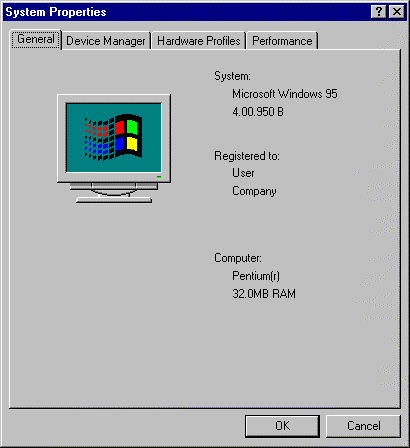
Figure 9-1. Windows System Properties
In Windows, click on the My Computer icon
using the secondary (normally the right) mouse button. A
pop-up menu should appear.
Select Properties. The System
Properties window should appear. Note the
information listed under Computer -- in
particular the amount of RAM listed.
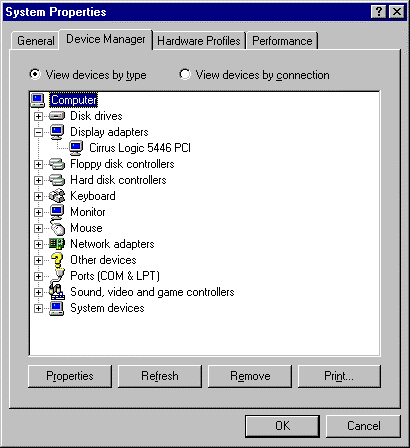
Click on the Device Manager tab. You
will then see a graphical representation of your computer's
hardware configuration. Make sure the View devices
by type button is selected.
At this point, you can either double-click on the icons (or
single-click on the plus sign +) to look at
each entry in more detail. Look under the following icons for more
information:
Figure 9-2. Device Manager Under Windows 95
Disk drives -- You will find the type
(IDE or SCSI) of hard drive here. (IDE drives will normally
include the word "IDE," while SCSI drives won't.)
Hard disk controllers -- You can get more
information about your hard drive controller here.
CDROM -- Here is where you'll find out
about any CD-ROM drives connected to your computer.
Please Note
In some cases, there may be no CD-ROM icon, yet your
computer has a functioning CD-ROM drive. This is normal,
depending on how Windows was originally installed. In this
case, you may be able to learn additional information by
looking at the CD-ROM driver loaded in your computer's
config.sys file.
Mouse -- The type of mouse present on
your computer can be found here.
Display adapters -- If you're interested
in running the X Window System, you should write down the
information you find here.
Sound, video and game controllers -- If
your computer has sound capabilities, you'll find more
information about that here.
Network adapters -- Here you'll find
additional information on your computer's network card (if you
have one).
SCSI controllers -- If your computer uses
SCSI peripherals, you'll find additional info on the SCSI
controller here.
While this method is not a complete substitute for opening your
computer's case and physically examining each component, in many
cases it can provide sufficient information to continue with the
installation.
Please Note
This information can also be printed by clicking on the
Print button. A second window will appear,
allowing you to choose the printer, as well as the type of report
(the All Devices and System Summary report
type is the most complete).
If you will be installing the X Window System, you should also be
familiar with the following:
your video card -- The card's make and model number (or the
video chipset it uses), and the amount of video RAM it has. (Most
PCI-based cards are auto-detected by the installation program.)
your monitor -- The unit's make and model number, along with
allowable ranges for horizontal and vertical refresh rates. (Newer
models may be auto-detected by the installation program.)
If you're connected to a network, be sure you know the following:
IP address -- Usually represented as a set of four numbers
separated by dots, such as
10.0.2.15.
netmask -- Another set of four numbers separated by dots. An
example netmask would be 255.255.248.0.
gateway IP address -- Yet another set of four dot-separated
numbers. For instance,
10.0.2.254.
one or more name server IP addresses -- One or more sets of
dot-separated numbers. For example, 10.0.2.1
might be the address of a name server.
domain name -- The name your organization uses. For instance,
Red Hat has a domain name of redhat.com.
hostname -- The name assigned to your individual system. A
computer might be named pooh, for instance.
Please Note
The information given above is an example only! Do
not use it when you install Red Hat Linux! If you
don't know the proper values for your network, ask your network
administrator.



 Download