| Red Hat Documentation |
 |
Logging Out of GNOMEGNOME has a couple of helpful methods for Logging out. You may either use the Logout menu item or the Logout button. The Logout menu item is the bottom menu item in the Main Menu. Simply select the Logout menu item and you will be prompted on whether you would like to log out or not. Select Yes and your GNOME session will end. If you would like, you may add the Logout button to the Panel. This is just another method for logging out. It provides no functionality beyond providing a pretty button. To add the Logout button to the Panel, right mouse click on the Panel and select the Add logout button menu item from the pop-up menu. Once the button is there you may press it to log out.
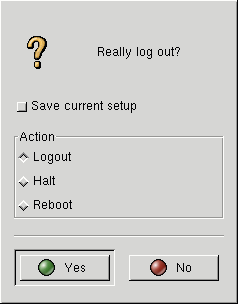
The Logout dialog will display when you log out of GNOME. This dialog will ask you whether or not you really want to log out. It also provides you with different methods of quitting GNOME. You have three choices on how to quit GNOME. You may Logout which will simply take you to a terminal; Halt, which will shut down the whole system; or Reboot, which will reboot the whole system. If you do not want to log out you may press the No button and you will be returned to your GNOME session. Figure 12-6. The Logout Dialog
Within the Logout Dialog there is one option you may choose before you leave GNOME. If you would like to save your current setup, you may select the Save current setup checkbox. This will save those programs you have open, and the configuration of your Panel. |
|
||||||