| Red Hat Documentation |
 |
Using the GNOME CalendarUsing the GNOME Calendar is quite simple and most tasks can be performed from any of the major views, Day, Week, Month or Year. Probably one of the most important features to remember is that at any time you can right mouse click on a particular day and add a new appointment. There are many other features which will be described below in each of the major views. The Day ViewThe Day tab is probably the most useful view in the GNOME Calendar as it acts just as a day timer would. On the left of the tab is the hour listing for the current day. The light grey coloring in the hour list separates the work hours from the non-work hours. If you would like to change the work hours displayed in light grey you can do so in the section called Setting Up the GNOME Calendar. Figure 21-3. The Day View
Next to the hours listing in the top right hand corner is a small full month calendar. You can change the month or year of the small month calendar by pressing the forward and backward arrows on the top. You can use the small month calendar to navigate the days as well. Double clicking on any day in the small month calendar will move the current day view to that particular day. Below the small month calendar is your Todo list. The Todo list is a simple list where you can keep all your tasks on hand. To add an item to the Todo list press the Add button. This will launch a small editing box where you can type in the item. Once you have entered an item in the To-do list you can use the Edit and Delete to manage you items. The To-do items are available no matter which days are displayed in the Day View and can only be deleted with the Delete button. The Week ViewThe Week View shows the current week with detailed descriptions of your appointments. If you would like to add an appointment for any of the days in the week view, you can right mouse click on the day and select the New appointment menu item from the pop-up menu. You can also use the week view to navigate to particular days in the Day View. Double-click on any day in the Week View and you will go to that day in the Day View. Figure 21-4. The Week View
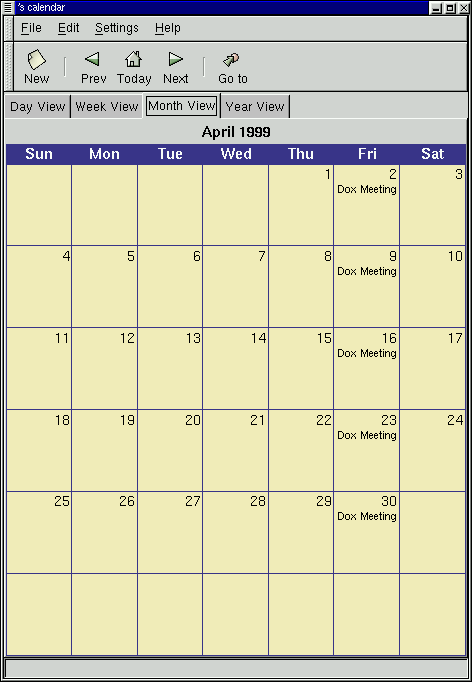
In the lower left corner of the Week View there is a small month calendar. You can change the month or year of the small month calendar by pressing the forward and backward arrows on the top. You can use the small month calendar to navigate the days as well. Double clicking on any day in the small month calendar will move the current week view to that particular week. The Month ViewThe Month View shows the entire month with brief detailed descriptions of your appointments. The Month View makes use of the customized colors available in the Calendar. You can read about how to set these colors in the section called Setting Up the GNOME Calendar. For any day with a brief description of an appointment you can click on the day to display a detailed description of the appointment in a pop-up window. If you would like to add an appointment to a day in the Month View you can right mouse click on any day and select the New Appointment in this day item from the pop-up menu. You can use the items in the pop-up menu to navigate in the Day, Week, and Year views by selecting either Jump to this day, Jump to this week, or Jump to this Year. Figure 21-5. The Month View
The Year ViewThe Year View shows you the entire year with no descriptions of appointments. Like the Month View, the Year View makes use of the customized colors available in the Calendar. You can read about how to set these colors in the section called Setting Up the GNOME Calendar. If you have an appointment on a day you can click on that day and a description of the appointment will be displayed in the pop-up window. If you would like to add an appointment to a day in the Year View you can right mouse click on any day and select the New Appointment in this day item from the pop-up menu. You can use the items in the pop-up menu to navigate in the Day, Week, and Month views by selecting either Jump to this day, Jump to this week, or Jump to this Month. Figure 21-6. The Year View
|
|
||||||